
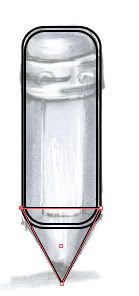
 Choose oval tools, and to develop a oval, as follows:
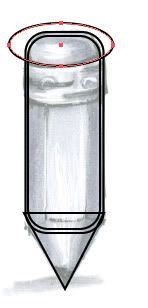 Choose the larger circle of rectangular and oval-shaped path of the track. To the Pathfinder palette, and click on the icon divide. A new group to appear in the layer palette. Any differences between the path will belong to this group.
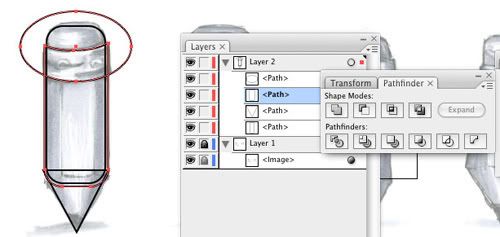 To the layers palette, and choose the following two paths in the new group, according to the command / press Ctrl + g to the group and lock them into this group. To do so, to make it easier to remove the unused path, in step Cancellation Group Group is divided into the path (in Step 8) group and choose to cancel select group orders from right-click menu.
Remove the unused path until it is to achieve results below.
Just as steps to do with erasers, for this path, we will use the greater the oval pencil and divide the path from metal rings, from the body.
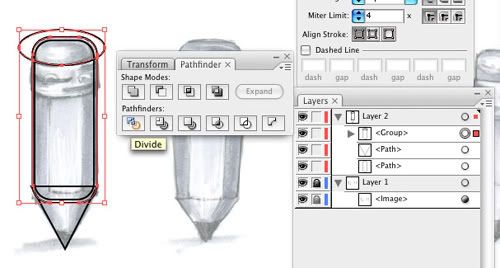
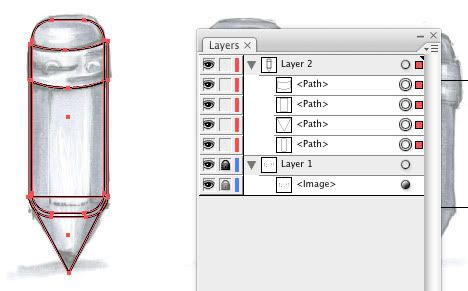 The shape of a pencil, has now taken a very basically. I think we can enter the details of this step by the right. We have to do is clean up a pencil.
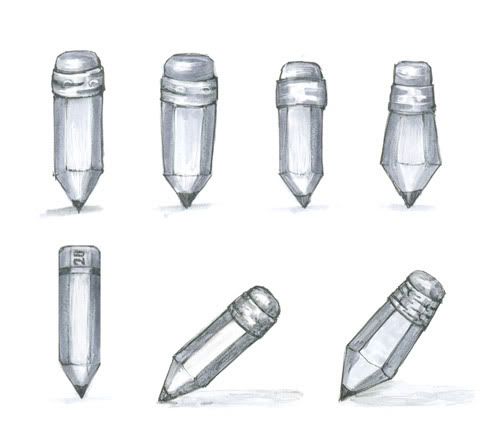 Basic outline:
3.1. The pencil body
The creation of a 64 × 64px documents. Drag the image (scan diagram) artboard to the new document. To the transparency of the palette, and set up the image of opaque, with 50. Lock this layer and storage of documents. Create a new layer, and began to outline it. To create a rounded rectangular path using rounded rectangular tool, and then click on the artboard set Increasing corner radius of the value of 10 px. Click OK.
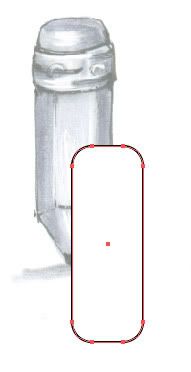 Choice selection tool (V) and click on a rectangular edge of the circular path and drag it over so that it closely on the outline for the image, like the following picture.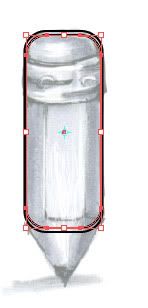
Rectangular round choice and set their color can not be compared. Looks smaller than the eraser, it needs reform. There are several possible ways to redraw erasers, pens use of tools (P), but according to my experience, they do not give good results. Choose rounded rectangular path. Double-click on the size of the tool and check the scale of unity in the dialog. The scale of the value of 96%. All copy to copy, in the following picture.
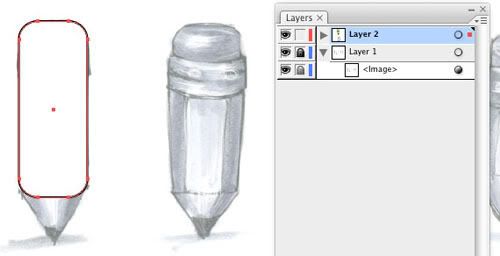 Choose rectangular tools, and to develop a new rectangular, in the position of the erasers and over the radio rectangular path.
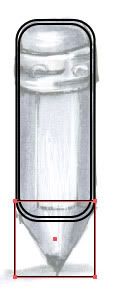 Choose to add the anchor tool (+), and click on the central point of the rectangular path (drawn in step 5), add one more anchor. Next, select the anchor point tool (-), and delete the two anchors.


No comments:
Post a Comment